
Firmware installer
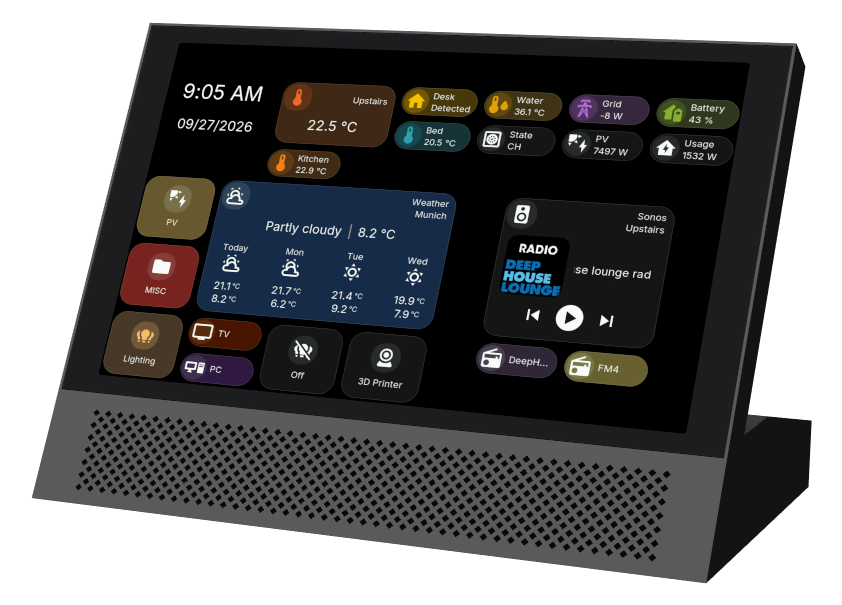
8" Touch Panel
Install or update the panel's Home Assistant firmware in a few minutes. An update keeps your dashboard.
You need: Google Chrome or Microsoft Edge on a computer, and a USB-C data cable.
- 1
Plug in the panel
Connect the USB-C port on the back of the panel to this computer. USB powers the panel, so it does not need to be mounted or on its own power.
- 2
Install the firmware
Press Connect and choose the panel in the list Chrome shows. The page checks the panel and picks the right firmware for its chip.
Details (for support)
- 3
Set up the panel
The panel starts its setup on its own screen. Choose Ethernet if a network cable is plugged in, or pick your Wi-Fi network and type its password.
After an update the panel skips this and goes straight back to your dashboard.
- 4
Add it to Home Assistant
Install the HomeTiles Bridge integration once with this button, select Download, then restart Home Assistant.

Then tap Pair on the panel. In Home Assistant open Settings → Devices & services, select Add on the discovered panel, and confirm when both show the same number.
- 5
Build your dashboard
Open the web address the panel shows in your computer's browser and add your tiles.
Trouble?
- The panel is not in Chrome's list: try another USB cable (some only charge) or another USB port.
- "Could not connect": close any other program or tab that uses the panel's USB port, then try again.
- Still stuck: contact us and paste the Details from step 2.